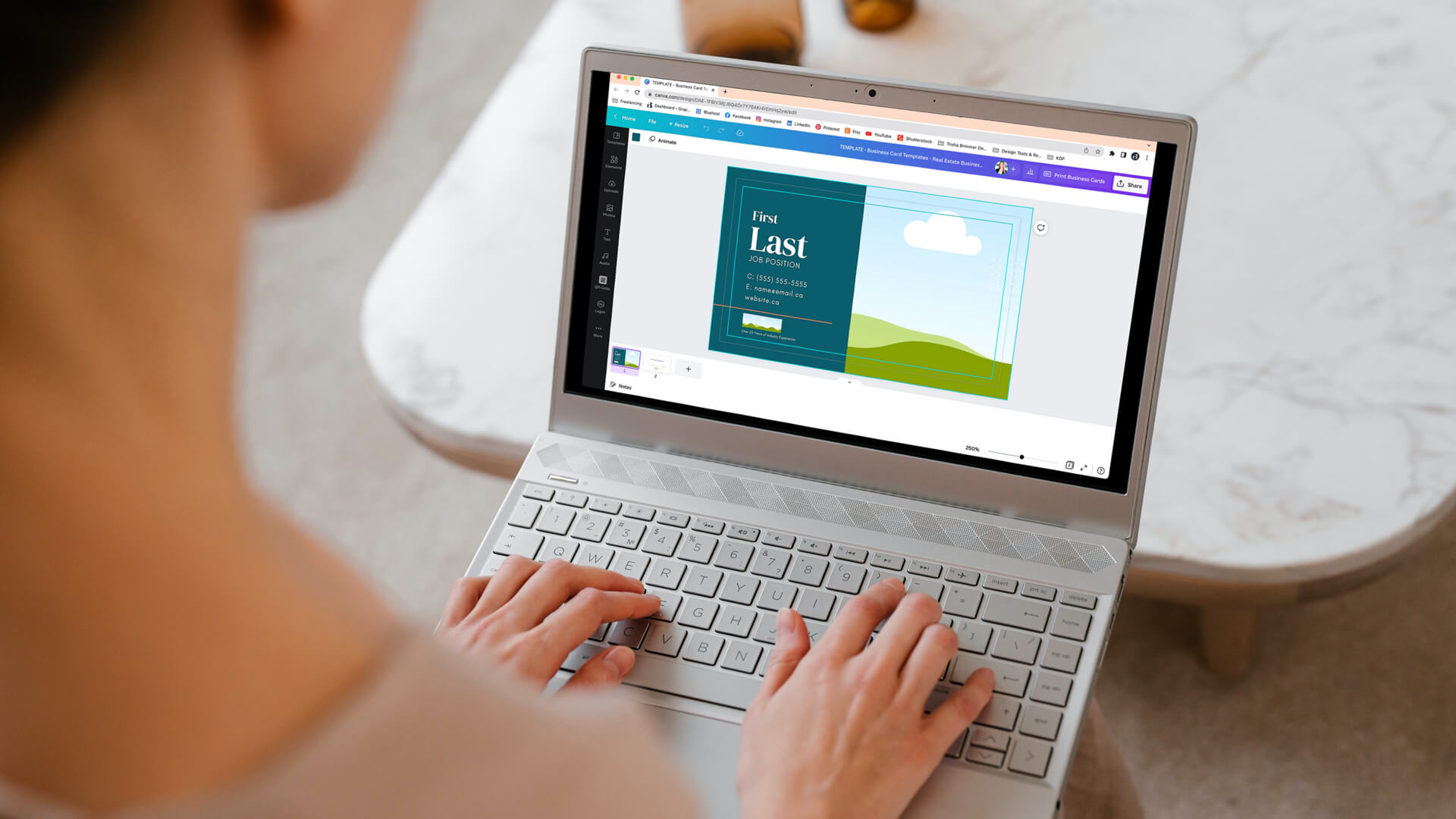
First things first: thank you for buying one of my templates. Every single purchase genuinely helps my small business, and it keeps me making designs that help people like you show up looking like the real deal.
This isn’t a full Canva tutorial. Canva already has plenty of those, and I’ve linked theirs at the bottom if you want to go deep. This is the quick version: how to get into Canva, open your templates, make them yours, and get your finished files out. Let’s go.
Canva is where you’ll actually build your stuff. Social graphics, presentations, posters, all of it, without needing a design degree or some complicated software you’ve never opened.
Never touched it before? You’re fine. Canva was made for people who aren’t designers and have no interest in becoming one. Head to canva.com and sign up. There’s a free version and a paid Pro version, and my templates work with either one. You do not need to pay for Pro to use them.
One thing worth knowing before you start: edit on a desktop, not the phone app. You’ll get all the tools and a lot less frustration.
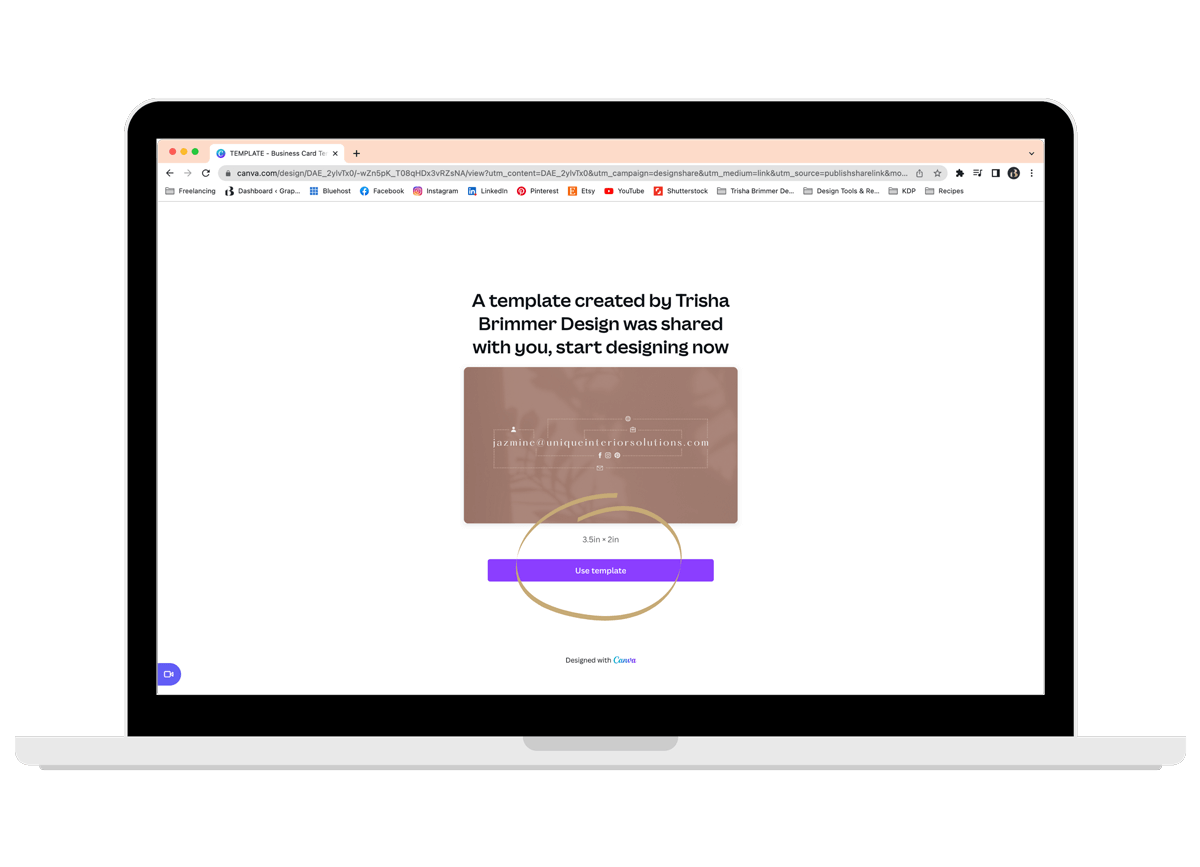
When you buy from me, you’ll get a downloadable PDF with your template links inside it. Open the PDF, click the download button (or buttons), and it’ll send you to a page that looks like the example below.
Look for the button that says “Use this Template” and click it. That opens your new template right inside Canva.
If you’re not signed in yet, Canva will ask you to log in or create an account first. It takes a minute, then you’re in and ready to customize.
It’s time to start editing your new templates!
Now the fun part. Drop in your own branding, your own photos, your own words, and turn these templates into something that actually looks like you.
Everything is fully editable. That means:
Push it as far as you want. There’s no wrong way to make it yours.
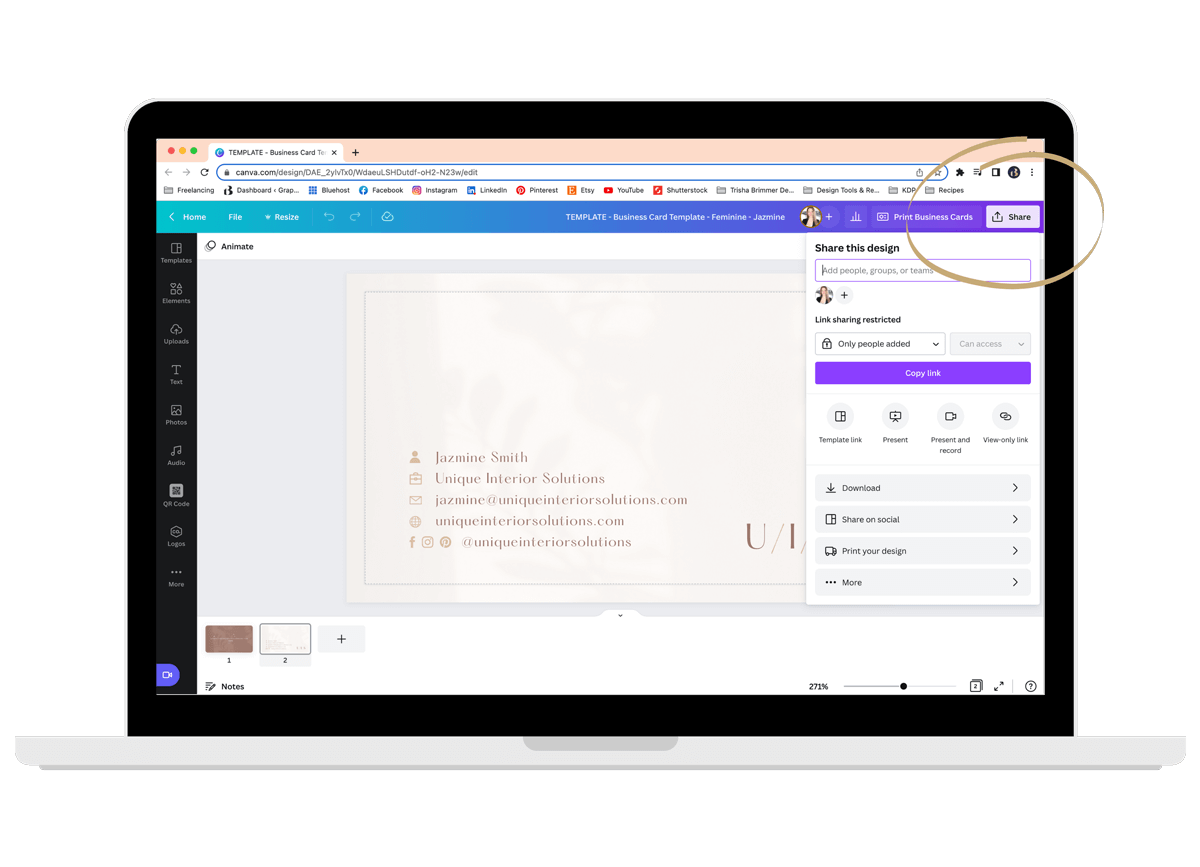
Happy with how it looks? Time to export it. Here’s the whole process:
That’s it. Your design is ready to use.
I want to be upfront about this part so nothing catches you off guard later.
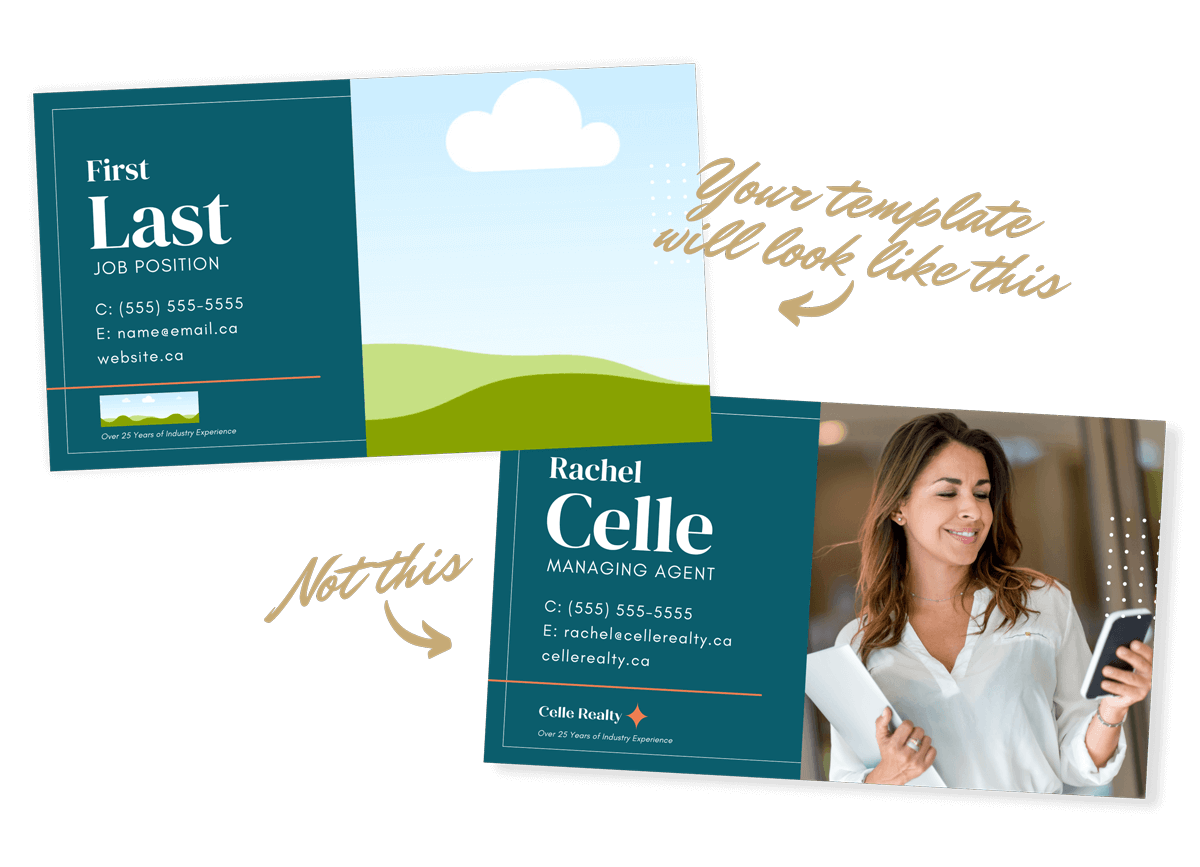
They’re there to show you the vibe, not to hand over. Swap in your own photos, or pull from Canva’s free library, which has thousands of images to choose from.
You’re getting templates, not done-for-you graphics. They’re built for you to add your own photos and branding first. Once you’ve made them yours, they’re ready to go.
If printing at home or through Canva isn’t your thing, Vistaprint and Moo both do solid prints at fair prices. Links below.
These templates are for one personal or business account, just yours. Please don’t redistribute, share, or resell them as templates, and that includes editing them first and then trying to resell them. Not cool, and not allowed.
Because they’re digital products, there are no refunds, exchanges, edits, or cancellations.
Stuck on something or have a question? Reach out. I’m genuinely happy to help you get unstuck.
Digital product, instant download. Nothing ships to you, and it doesn’t include printing, framing, or accessories.
One quick heads-up on colour: every screen and every printer renders a little differently, so what you see on your monitor might shift slightly when you print it. That’s normal, not a mistake on your end.
That’s everything you need to get going. Open your template, make it yours, and have fun with it.
And if you ever hit the point where a template isn’t quite enough, where you want the strategy and the brand thinking behind it, that’s exactly what I do. No rush though. For now, go put these to work.
New to Canva? Their tutorials are a great place to start.